09 June 2017

Improving your Home Wifi signal strength


How is your home Wifi signal strength?  Do you have areas where there is little or no Wifi signal at all?  Have you tried to fix it but were unable to resolve your issue?   


I will try to explain the issues simply and provide practical solutions that will work for you.  Like most things, there is a limit to the Wifi radio signal being received by devices around the home.  You will know that the Wifi signal strength is shown by the number of bars on your Wifi icon.  All the bars indicates excellent Wifi strength, no bars mean, well I think if you are reading this you know what that means.

Clearly the further your device is away from your Wifi Router the less signal strength you will receive.  So how do you fix this so your home has better Wifi signal and fewer 'dead spots'?  

I will assume that you have heard of Wifi extenders or Wifi repeaters.  Go to any Office Works store and you will find plenty of them.  You will also find Ethernet Power Adapters that can provide a virtual Ethernet cable connection using your home electrical wiring.  From my experience these solution rarely are very effective.  If you have one of these solutions and it is working ok well that's fine.    

Here are my best solutions to fix Wifi signal issues.

1/ Relocate your router to a central location within the home to provide a better signal to all areas.
2/ Install your Wifi Router at one end of the house and then add another Wifi Router at the other end.

Tip - These days many people have an old Wifi Router collecting dust somewhere.  These will work perfectly as a second Wifi Router. 

Terminology - 
IP address - A numerical 4 part number displayed as xxx.xxx.xxx.xxx
Subnet Mask - A numerical 4 part number displayed as nnn.nnn.nnn.nnn to determine the number of addresses within the Local Network.
Gateway - A IP address of the Router that is the way out of the Local Network.
DNS - The Internet directory that stores all Internet Names and associated IP addresses.  
DHCP - The system that automatically allocates IP addresses to devices when they connect to the Local Network.
DHCP Range - The pool of addresses the DHCP server can allocate from.

Any good electrician can help you relocate your router or install a new Ethernet cable but very few will know how to configure multiple Wifi Routers on a home Local Area Network.  So, have your electrician install the Ethernet cable and setup your additional Router yourself.

So this is what you have to do to add an additional Wifi Router/s on your network.

A/  Existing Router - Change the DHCP range to free up some addresses for the additional Router/s.
B/  Additional Router/s - Enter an IP address to the additional Router/s that was made available in the previous step.  Disable WAN connection, Disable DHCP, add the Gateway and DNS IP's as the existing Router IP Address.  Define a Wifi name/s and password/s on the additional Router/s.
C/  Connect an Ethernet cable from the existing Router LAN port to the additional Router LAN port.
D/  Setup both Wifi networks on your mobile devices, use the Wifi network that is closer to you for best speed and reliability.
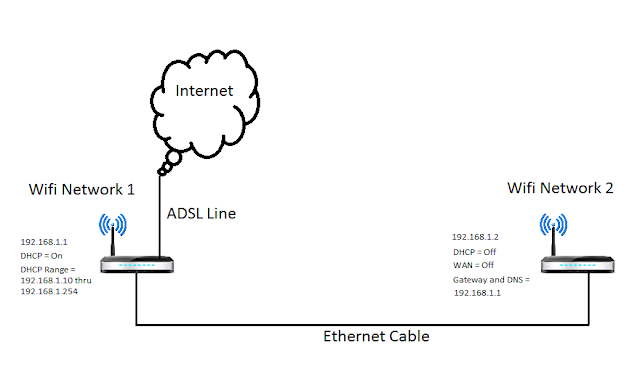
How to do this you ask?

1/ Open a command prompt on a pc connected to your existing router.  Use the CMD command.
2/ Type IPCONFIG/ALL
3/ Look for your Gateway IP address.  Typically it is either 192.168.1.1 or 10.1.1.1
4/ Open a browser and enter your gateway IP
5/ Your existing Router login page should be displayed.  Login with its usercode and password.
6/ Go to the LAN section, you will see the Router IP and Subnet mask there.  Typically the Mask will be 255.255.255.0  (This defines the number of Network IP addresses)  Look for the DHCP range.  Typically it will be either 192.168.1.2 to 192.168.1.254 or 10.1.1.2 to 10.1.1.254 depending on your LAN IP addresses.
7/  Change the starting IP that will be allocated to devices to allow room for the additional Routers.  Eg.  DHCP Range 192.168.1.10 to 192.168.1.254.  This will allow us to allocate up to eight additional routers.  (IP's *.2 *.3 *.4 ... *.9).  Devices will be allocated addresses *.10 thru *.254.  I doubt you will have more than 200 devices at home :).
8/ Save your changes and re-confirm your changes are correct and saved.
9/ Disconnect your PC from the existing Router (Wifi or Ethernet Cable) and connect your PC to the additional Router either via an Ethernet Cable or Wifi.
10/  If you dont know the Wifi password for the additional Router, you will need to use a cable.
11/  Ensure you are connected and open a browser and enter the additional Router IP.  Again it typically will be either 192.168.1.1 or 10.1.1.1.   Look at the Router label, it usually has the factory default IP details there.
12/ Your additional Router login page should be displayed.  Login with its usercode and password.
13/ Go to the WAN section and disable WAN connections.
14/ Go to the Wireless section and add a new Wifi name and password.
15/ Go to the LAN section and disable DHCP.
16/  Change the additional Router IP to one you made available in step 7.  eg.  192.168.1.2, change the gateway IP and DNS IP to the existing Routers' IP.  eg.  192.168.1.1.  Save your changes.

Note: You will loose your view to the Router once it re-boots as it no-longer has the old IP.

17/ Enter the new additional Router IP in the browser address bar.
18/ Login and check all your changes.
19/ Remove the Ethernet cable from your PC and connect it to your existing Router LAN port.
20/ Connect to the additional Router Wifi network (as per Step 14) and test you have access to the Internet.
21/ If this is working, you can relocate the additional Router to the other end of your house where poor Wifi signal exists.  You may need help to have an Ethernet cable installed between the old and new Router locations.  Cat5e or Cat6 will work just fine for a home network.

Tip - You can use any address for the additional Router but it MUST be within the LAN IP Range and MUST NOT be within the DHCP Range.  IP conflicts may occur if you get this wrong.  Be aware of any static IP usage.  Look in the Port Forwarding section of your Router to see if anyone has setup a specific IP for external access.  These static IP's are for devices that do NOT use DHCP.  These static IP's must NOT be within the DHCP range.  This instruction is suitable for most home and small office networks with less than 250 devices.   


Need help?  Send me an email, tell me your problem and I will try to help you out. 


Call Geoff on 0485 006 456 or email Geoff@EppingElectrical.com 


17 May 2015

Electrical work with 'Lifetime Workmanship Warranty'


How many times have you heard how difficult it is to have a trades person return to attend to something that went wrong? 

Imagine finding an electrician in Melbourne that will not only arrive on-time, do the work and clean up after themselves, they will provide a written warranty that will cover all their work for life*.  

At Epping Electrical, we have a very different outlook to most other electricians.  We believe that if electrical work is done right the first time, it should stand the test of time.  We are so confident of our workmanship, we provide 'Lifetime Workmanship Warranty*' for 'ALL' our work.


Should anything go wrong with the work we have done, we will make it right at no cost to you.  Our customers rely on us to not only get the job done, but to stand by the work into the future.

We understand your home is one of the biggest investments you will ever make.  Don't risk your home with anyone.  Keep your investment safe with Epping Electrical's 'Lifetime Workmanship Warranty*'


What about installed materials?   Electrical materials today vary greatly in terms of cost, design, quality and durability.  Choosing the right materials is an important first step to ensure what we install will stand the test of time.  We only use high quality materials, using brands including Clipsal and ABB.  These trusted suppliers produce a range of electrical supplies of the highest quality.  


Call Geoff on 0485 006 456 or email Geoff@EppingElectrical.com 


*Lifetime Workmanship Warranty is non-transferable and is defined by the entire time the property is owned or occupied by the Epping Electrical Customer.    Other conditions apply. Images sourced from Nostra Homes

13 August 2013

Another Home Safer with a New Switchboard


Today we were called out to a home in Thomastown, we found the home was still using its original switchboard from the 1960's.  The fuse contacts overheated and burnt the wire behind the switchboard.  Thankfully this did not cause another house fire started by old electrical switchboards.  We replaced the old switchboard with a new Switchboard from ABB.  The new Switchboard complies with the latest regulations.

Some of these regulations include:-

1/  Main Switch is a Circuit Breaker rated to the mains cable capacity.
2/  Safety Switch to protect every circuit.
3/  Work Inspected by a qualified third party.
4/  A Prescribed Certificate of Electrical Safety issued.


So, its out with the old and in with the new.

If your home has an older Switchboard, don't risk it, upgrade it!

If you are not sure if it needs replacing, send me a pic to 0485 006 456 or geoff@eppingelectrical.com and I will let you know.

Geoff


26 March 2012

Are you stealing Electricity without knowing it?

In April 2010 we come across a home that had an illegal mains connection to access free Electricity.  If you did not get to read this blog, here it is again.  I thought that was amazing until last Friday when I was called to a home in Epping to repair a fault in the Slab Floor Heating.  After some initial testing, we discovered the Off-Peak Meter was not turning when the Floor Heating Elements were energised.  We knew this could only be the result of a few situations. 

1/  All the Slab Floor elements were damaged.  (Open Circuit)
2/  The Meter is not operating correctly or has been tampered with.
3/  The Off-Peak Meter had been illegally by-passed.

We tested the elements and used an Amp Meter to measure if there was current flow.  There was 12Amps on one element and 8Amps on another.  These high loads really make the old Meters spin quite fast, well not in this home!

The family of six had lived in the house for over 4 years and did not seem to be the type of people to be involved in this sort of activity.  I asked the home owner if they think the Slab Floor Heating is expensive to run during winter, she said "yes, my electricity bill is always around $300".  I asked if this was the monthly bill or a quarterly bill.  It was quarterly!!!  Clearly the home owner has no idea what the bill for Electricity should be with Slab Floor Heating.  The fact that she did not say the bills were higher in winter rang the alarm bells even louder. 

I told the owner that I suspected they were not being charged for the Slab Floor Heating.  She showed me her last bill, as expected it showed 0 KWH (KiloWatt Hours).  From the home owners perspective the bill had always been like this. 

The home owner asked me to look further to determine if there was any sign of illegal wiring.  I first looked behind the Switchboard Panel, this is what I found!


Two enclosures were mounted behind the panel, one was made to look like it was legitimate with the words "Heating Timer Control - Danger 415V".  The lower enclosure had some gear un-mounted, another example of dangerous and illegal wiring.  After removing the covers, I discovered the illegal mains connections and traced them back to the Floor Heating controls.


The owner was horrified to see this in their own home.  All relevant authorities have now been informed of this situation and have commenced their investigations.  They will go back to all the past bills to determine when the last time Off-Peak Electricity was used.  This will allow them to identify the owner at the time to possibly lay criminal charges.  Unfortunately for the current owner, all rectification costs will be charged to them in order to have their Electrical System returned back to the normal state.  This will not only mean removing the illegal wiring but will also include mandatory works to bring the Electrical Switchboard & Meter Panel to the current regulations.      

If you suspect your home to have any illegal or un-safe wiring, call Epping Electrical on 0485 006 456 today.


Geoff Connor
Director
0485 006 456

19 March 2012

Are Home Solar Systems in Melbourne Worth the Investment?


I am frequently asked by customers if Solar Systems in Melbourne are a good idea.  The answer is not easy as there are so many factors to consider.  If the customer's only objective is to help the environment, then thats other story.  But for most people (I would say) who install a Solar System, its all about the savings!!!

Well what are the savings?  What factors will limit the savings and most importantly how many years will have to pass before I have saved enough to offset the initial outlay to actually start saving money.

If you are interested to know if its all worth it, drop me a line and I'll work it out for you.

Here are the details I need from you.

1/  The size of the proposed system in Kilowatts (KW).
2/  How much you are paying for electricity per Kilowatthour (KWH)
3/  What your Feed-In Tariff would be.  This is what you are paid for Electricity passed back to the grid.
4/  How many KWH's you use on average every 3 months.
5/  Total cost of the Solar System (after any govt rebates) plus any meter change charges.

Geoff
Director
Epping Electrical